How to run a Rose, Bud, Thorn retrospective
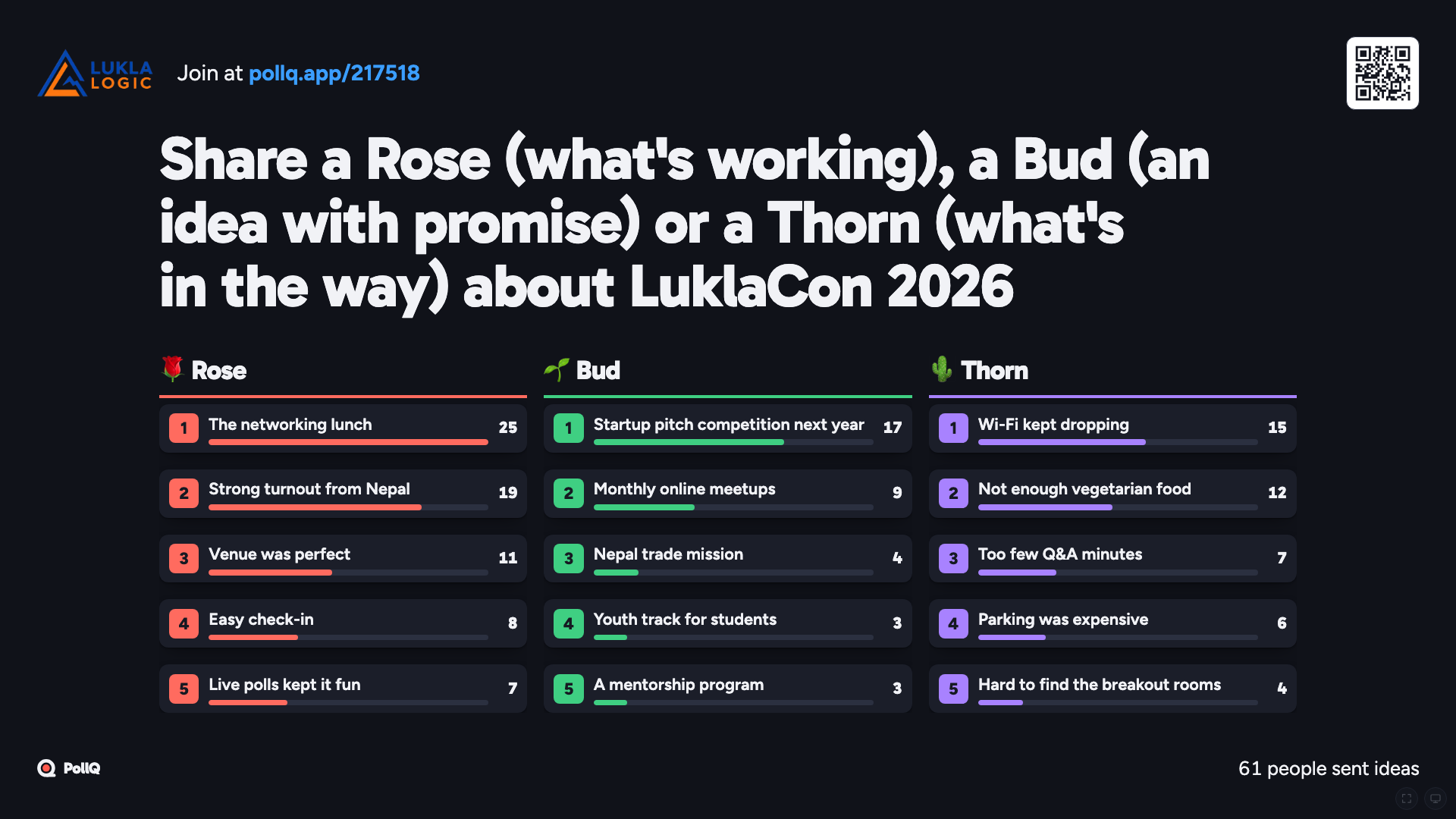
Rose, Bud, Thorn is a quick way to look back on an event, project or meeting. Everyone names what's working (a Rose), an idea with promise (a Bud) and what's in the way (a Thorn). Run it on a live board where people post and vote from their phones, and the room sees its own priorities in minutes, ranked by votes.
What each part means
- 🌹 Rose: something that's working and worth keeping. "The networking lunch."
- 🌱 Bud: an idea that could grow. "A startup pitch competition next year."
- 🌵 Thorn: a problem or something in the way. "Wi-Fi kept dropping."
It works at the end of a conference, after a sprint, at a team offsite or in a class. Asking for all three keeps the conversation balanced: people say what to keep, not only what to fix.
How to do it in PollQ
- Create an event, or open one you already have.
- In the Templates gallery under your polls, search for Rose, Bud, Thorn (it's under Retrospectives), open it and click Add 1 poll. Or click Add poll and choose Ideas board, tick Sort ideas into categories (a column for each on the screen) and click Rose, Bud, Thorn.
- Edit the question to name what you're looking back on, such as "… about the conference" (Edit next to the poll), and save it.
- Click Open present view, put it on the big screen and press F. Attendees join at pollq.app with the 6-digit code or the QR code.
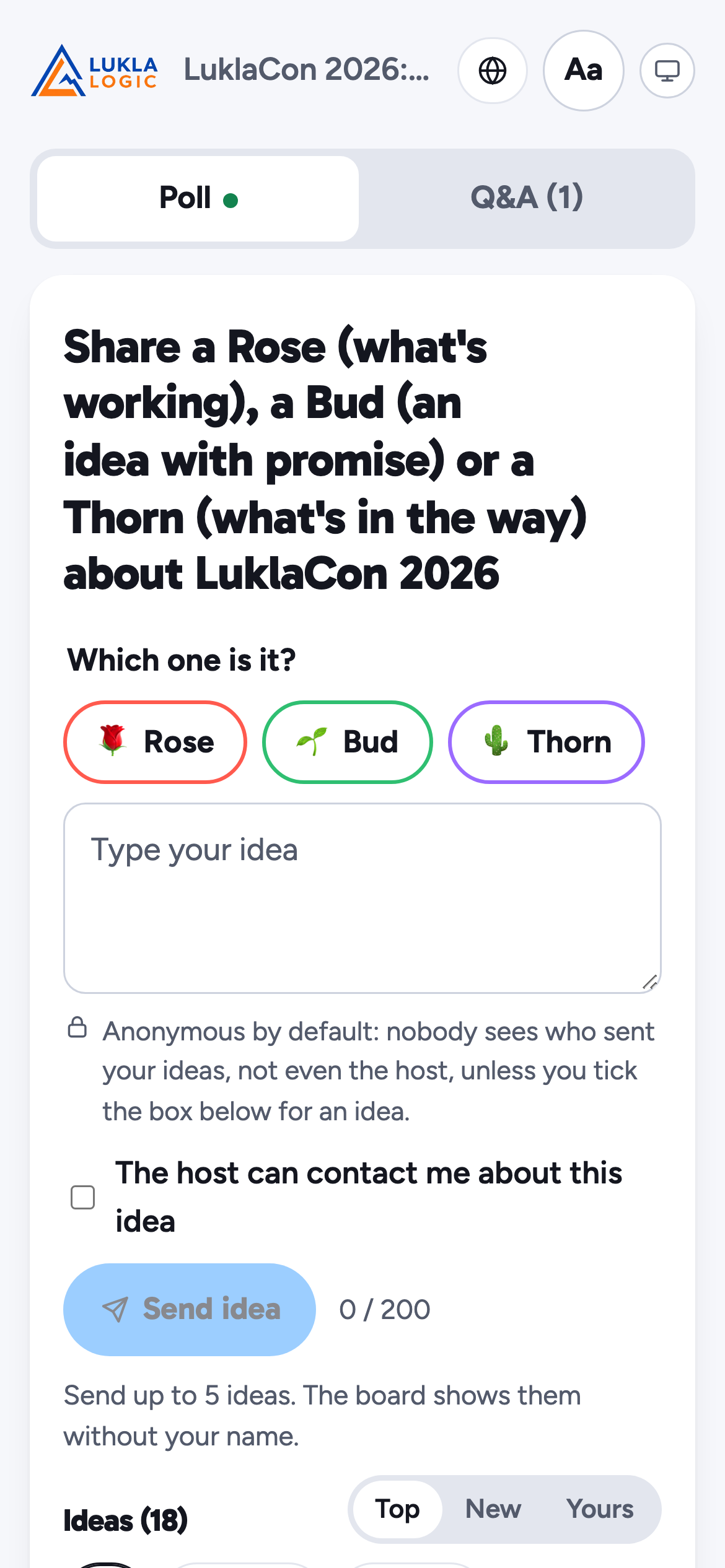
- Click Present in the On screen now panel (or press the board's number key). On their phones, attendees pick Rose, Bud or Thorn, type an idea and send it.
- Each person can send up to 5 ideas and vote for other people's, one vote per idea. The columns re-rank as votes arrive.
- When you're done, close the board and put the AI summary on screen (below).
Running it well
- Give people 3 to 5 minutes to post, then a minute or two to vote. Read out the top Rose first, then the top Thorn.
- Ask for one of each if the room is shy. A short board with clear votes beats a long one nobody reads.
- Attendees can fix a typo or change the category of their idea until someone else votes for it, and delete their own ideas while the board is open.
- For a public event, tick Review ideas before they go on the board to approve each idea first. The word filter holds ideas with offensive words for review either way.
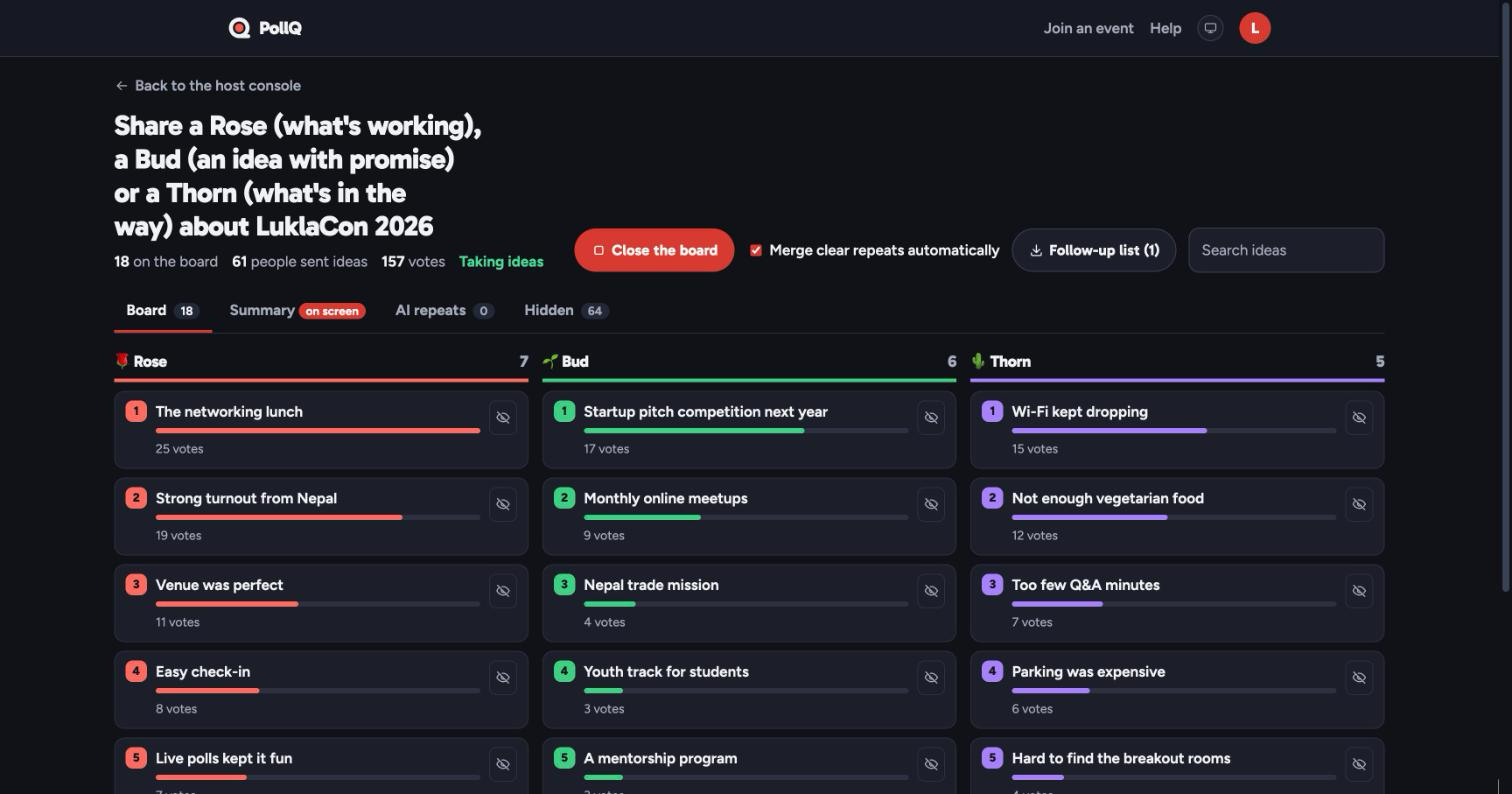
- Click Open full board on the host page to run it from a laptop, with search and room to work.
Merging repeats
In a big room, ten people will post "the Wi-Fi was bad" in ten ways. If someone sends exactly what's already on the board, it counts as a vote for it. AI also spots the same idea in other words, even when one person filed it as a Rose and another as a Thorn, and lists them under AI repeats. Merge them and the votes join the card people backed most, so support isn't split. Tick Merge clear repeats automatically to let clear repeats merge as they arrive; borderline ones wait for you. People whose idea was merged see it under Yours on their phone, with the card it joined.
The AI summary
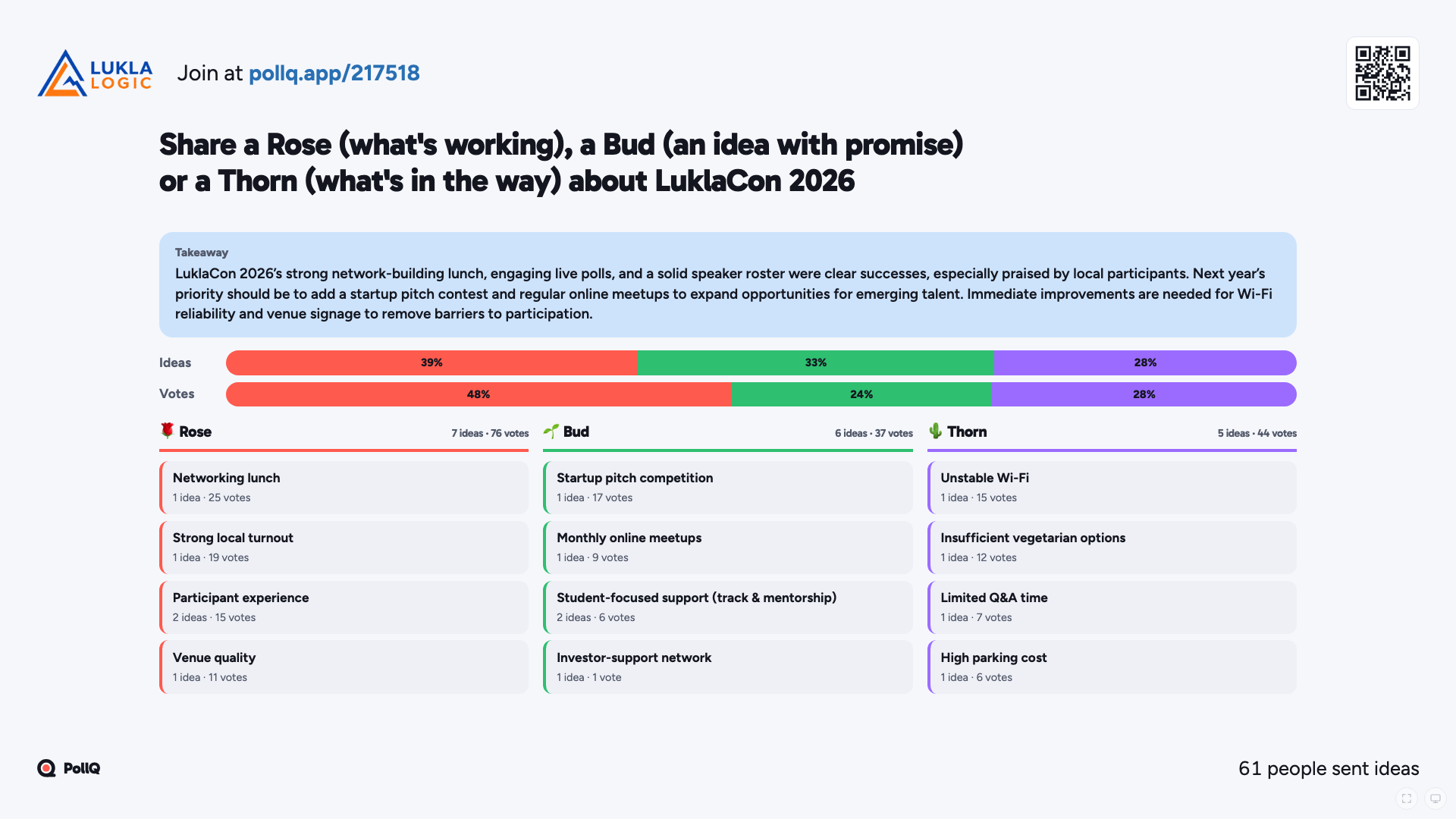
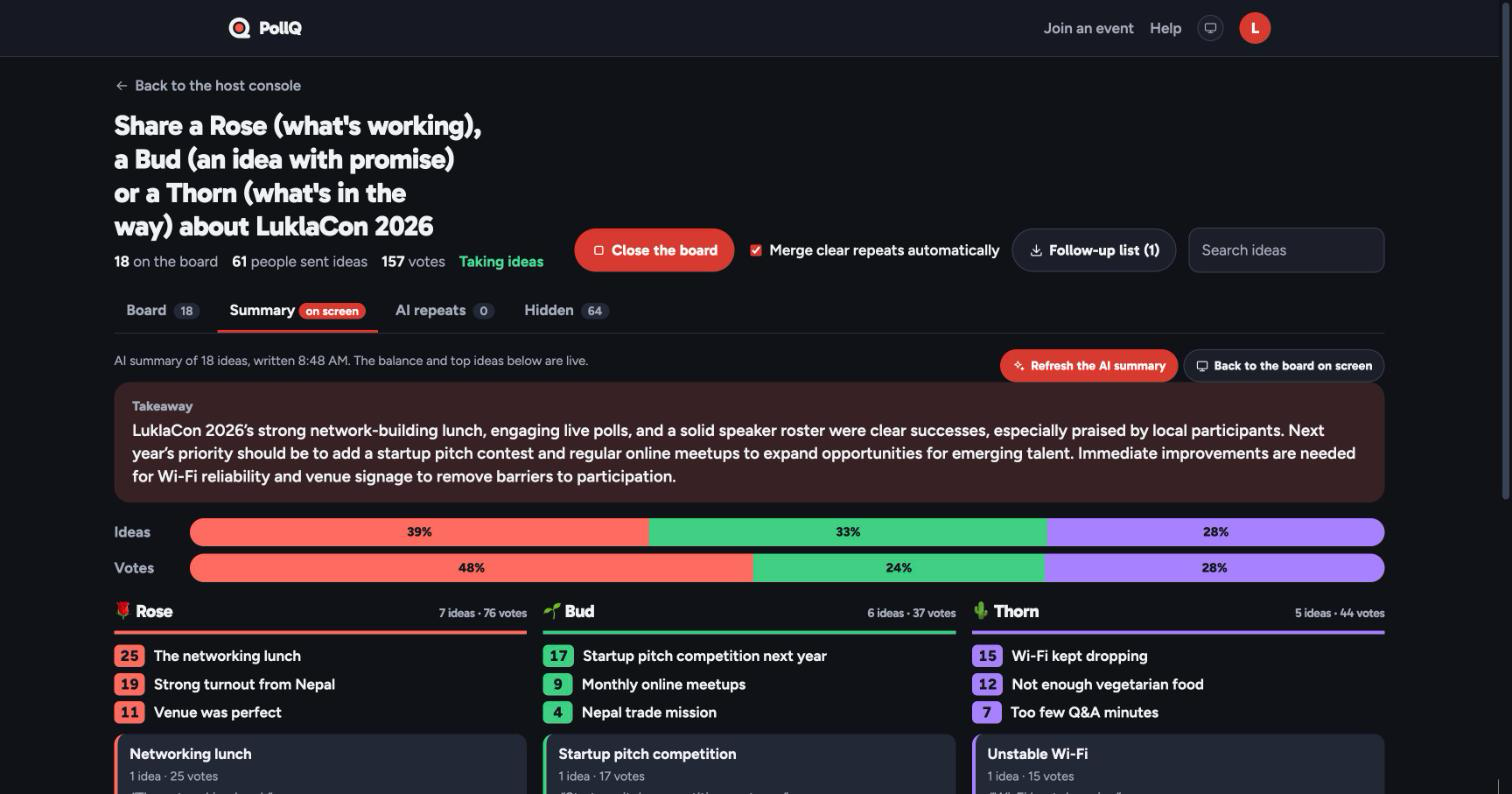
On the full board page, open Summary and click Summarize with AI. PollQ writes a short takeaway (what's working, what to build on and what to fix first), shows how ideas and votes split between Rose, Bud and Thorn, and groups each column into themes with their votes. Click Show the summary on screen to close the session on it.
Following up with people
Some Thorns need a conversation. Tick Let attendees pick ideas you may contact them about when you add the board. Ideas stay anonymous by default; an attendee ticks The host can contact me about this idea for the ones they want to talk about and leaves a name and email once. You see the contact only next to those ideas, on the full board page and in the Follow-up list download. Other attendees never see it, and attendees can take it back at any time.
Afterwards, every idea with its votes is on the results page and in the downloads. See Ideas in the documentation for every option.